Google docs templates
How to make a letter or document in Google Docs?
Using Google Docs to write a letter or create a document is a straightforward and convenient process. Here's a step-by-step guide on how to do it:Access Google Docs:
Open your web browser and go to Google Docs by visiting docs.google.com.
Sign in to your Google account. If you don't have one, you can create a Google account for free.
Create a New Document:
Once signed in, click on the "+ Blank" option to create a new document. This will open a blank page where you can start writing your letter.Format Your Letter:
Set up the document with the appropriate formatting. You can adjust the font style, size, and color using the toolbar at the top.
You may want to set the page margins and orientation. Go to "File" > "Page Setup" to customize these settings.
Add Content:
Begin typing your letter in the blank document. Google Docs functions similarly to other word processing software, so you can easily type, edit, and format text as needed.
Use the toolbar to format the text, add bullet points, change the text alignment, and more.
Insert Elements:
Google Docs allows you to insert various elements into your letter. To add an image, go to "Insert" > "Image" and upload the desired image from your computer or the web.
If you want to add a hyperlink, select the text, right-click, and choose "Link" to insert a web link.
Save Your Document:
Google Docs automatically saves your work as you type. However, it's a good practice to save manually as well. Click on "File" > "Save" or use the keyboard shortcut (Ctrl + S on Windows, Command + S on Mac).
Collaborate and Share:
One of the significant advantages of using Google Docs is the ability to collaborate with others in real-time. Click on the "Share" button in the top-right corner to invite collaborators via email. You can grant them permission to view, comment, or edit the document.
Review and Edit Revisions:
Google Docs keeps track of changes, making it easy to review and edit revisions. Go to "File" > "Version history" > "See version history" to view and restore previous versions of your document.
Download or Print:
Once your letter is complete, you can download it in different formats by going to "File" > "Download." If you prefer a hard copy, you can also print your document by selecting "File" > "Print."
Close and Exit:
When you're finished, close the document or tab. Google Docs automatically saves your changes, so there's no need to worry about losing your work.
That's it! You've successfully written a letter using Google Docs. Whether you're working on personal correspondence, business letters, or collaborative documents, Google Docs offers a user-friendly platform with robust features for efficient and effective writing.
-
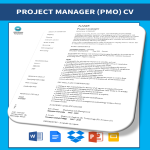
Project Manager CV
How do I write a good Curriculum Vitae that will impress for PM position? Check out this basic Project Manager Officer CV template now!
View template -
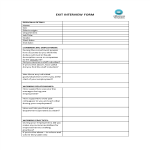
Exit Interview Form In Word Format
How to create an exit Interview Form in Word Format? Download this Exit Interview Form in Word Format template now!
View template -
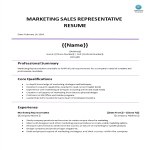
Marketing Sales Representative Resume
Are you a dynamic and results-driven marketing sales representative looking to make a lasting impression on potential employers? Download our expertly crafted resume template which is designed to showcase your skills and experience.
View template -
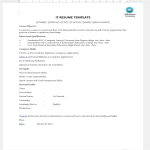
Sample IT Resume
How to create a strong resume for Information Technology positions that gets results? Download this IT Resume Google Docs and Word template now!
View template -
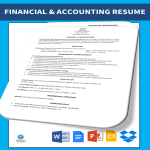
Financial Accountant Resume sample
How to draft a Financial Accountant Resume that gets results? Download this Financial Accountant Resume now!
View template -
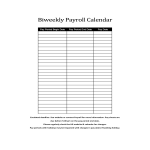
Bi Weekly Payroll Calendar
Looking for a Bi-Weekly Payroll Calendar? Check out our example calendar and download your free printable Bi-Weekly Payroll Calendar template today!
View template -
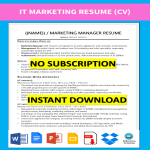
IT Marketing Resume Sample
How to create an IT Marketing Resume Sample? Download this IT Marketing Resume Sample template now!
View template -
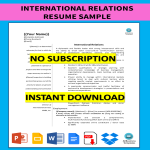
International Relations Resume Sample
There are various suggestions on how to write a resume in the field of international relations. Do you need a sample CV for working in international relations? Here is this example format of a resume you can download and start off with!
View template -
CV Sample
How to grab your futures employer’s attention with your CV in just a few seconds, when you are applying for your dream job. Download this CV Sample now!
View template
Latest topics
- Letter Format
How to format a letter? Here is a brief overview of common letter formats and templates in USA and UK and get inspirited immediately! - Excel Templates
Where to find usefl Excel templates? How do I create a template in Excel? Check these editable and printable Excel Templates and download them directly! - IT Security Standards Kit
What are IT Security Standards? Check out our collection of this newly updated IT Security Kit Standard templates, including policies, controls, processes, checklists, procedures and other documents. - Drop Shipping Agreement
How to start drop shipping? Do you need a Drop shipping Agreement? Check out our Dropshipping Agreement templates now! - Google Sheets Templates
How to work with Google Sheets templates? Where to download useful Google Sheets templates? Check out our samples here.